


Analysing and comparing portfolios
Contents
The portfolio summary gives the quick read on a built portfolio. For the full toolkit—the complete metric suite, rolling metrics, distributions, and correlations—portfolios go to the Insights pages, the same Analysis and Comparison tools used for assets. The general walk-through of those tools is Analysing ETFs, stocks, and more; this article covers what is specific to portfolios.
There are three ways in:
- From a table: select portfolios in the tables of the Portfolios Overview, Assets Overview, or Asset Database page, then choose Actions and Analyse or Compare.
- From the portfolio summary: an open portfolio summary sends its portfolio on via its own Actions menu.
- From the navigation: go to Insights, then Analysis or Comparison, and pick the portfolio—or several—directly in the selection dropdown, where portfolios appear alongside assets.
A portfolio analyses like any asset—Overview, Returns, and Rolling Metrics tabs against a benchmark you choose—plus one tab assets do not have: Allocations. Its four charts—Contribution to Returns, Contribution to Drawdowns, Allocations over time, and Current Allocations—break the portfolio's behaviour down to its holdings, each with a Group By setting that aggregates assets by category. Each chart is explained in Understanding the allocation charts.
Comparison puts portfolios side by side—against each other, against individual assets, and against a benchmark. Mixing is allowed and useful: compare your portfolio with a pfolio pre-built before choosing between them, or with the ETF you would otherwise buy. The returns, drawdowns, metrics, and rolling-metrics tabs mirror the Analysis page with colour coding by group; the correlations and scatterplot tabs show how the compared portfolios move relative to each other—low correlation between two portfolios means holding both adds diversification.
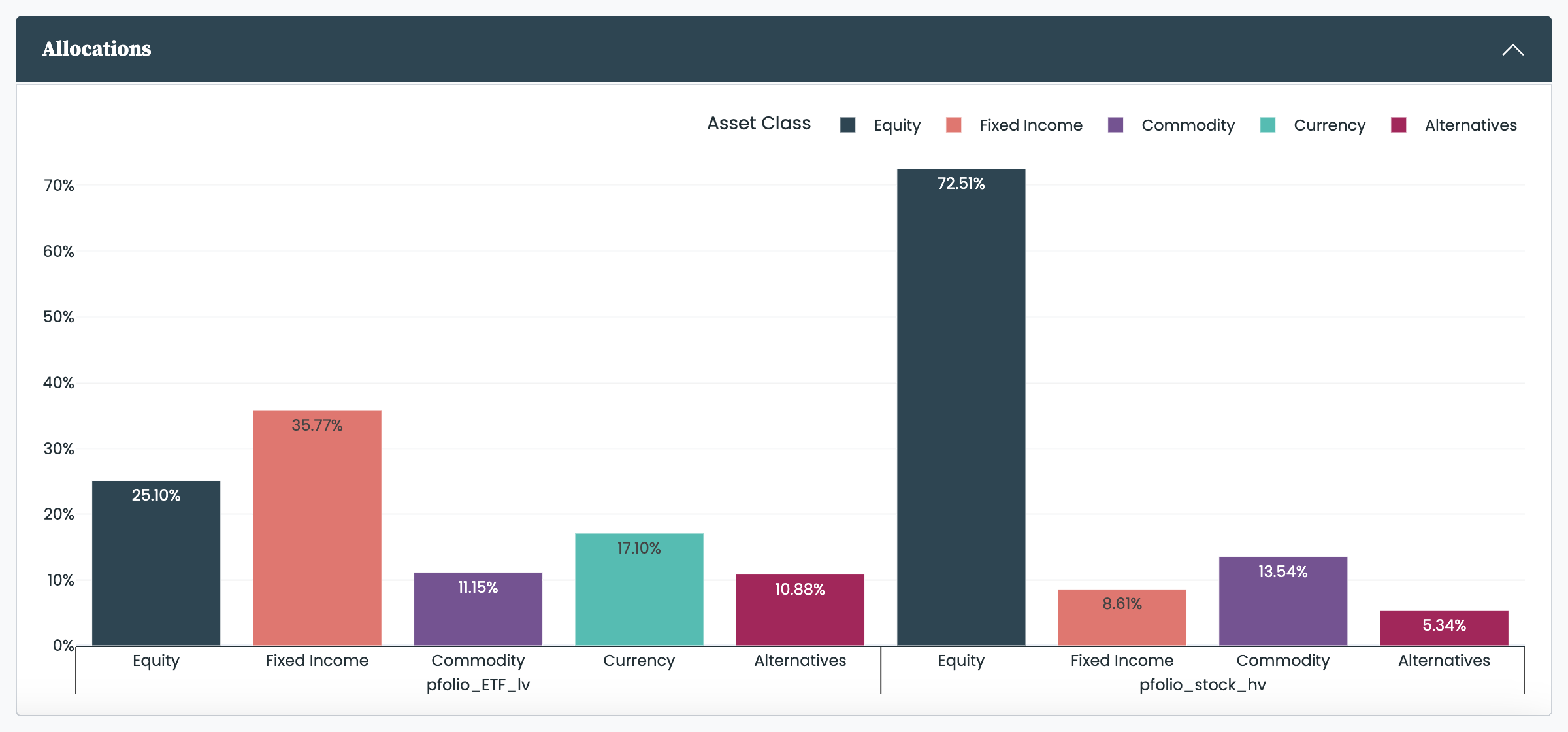
As soon as at least one portfolio is in the comparison selection, an Allocations accordion appears as well. It shows each selected portfolio's allocation breakdown side by side, aggregated by the comparison's Group By setting—the quickest way to see how two portfolios differ in composition rather than performance. The grouping logic is the same as in a single portfolio's analysis—see Understanding the allocation charts.
Every metric in these views is defined in the metrics we use, and the chart types in Time series data and metric types. The advanced settings shared by Analysis and Comparison—estimation choices you can usually leave unchanged—are covered in Analysis and comparison advanced settings.


