


Understanding the scatterplot
Contents
The scatterplot appears in Quick Insights, in the Category Insights view, and on the Comparison page. It works the same way in both.
Each point is one asset or portfolio. Its position comes from two metrics—one on each axis—and its bubble size from a third. Plotting three metrics together lets you see a trade-off at a glance: return on one axis against a risk metric on the other, for example, shows which assets earned the most for the least risk.
A dashed line on each axis marks the mean across everything plotted—the assets and the benchmark together—so you can see at a glance which bubbles sit above or below the average on each metric. The benchmark is the only bubble labelled on the chart; hover any bubble to see its name and all three metric values.
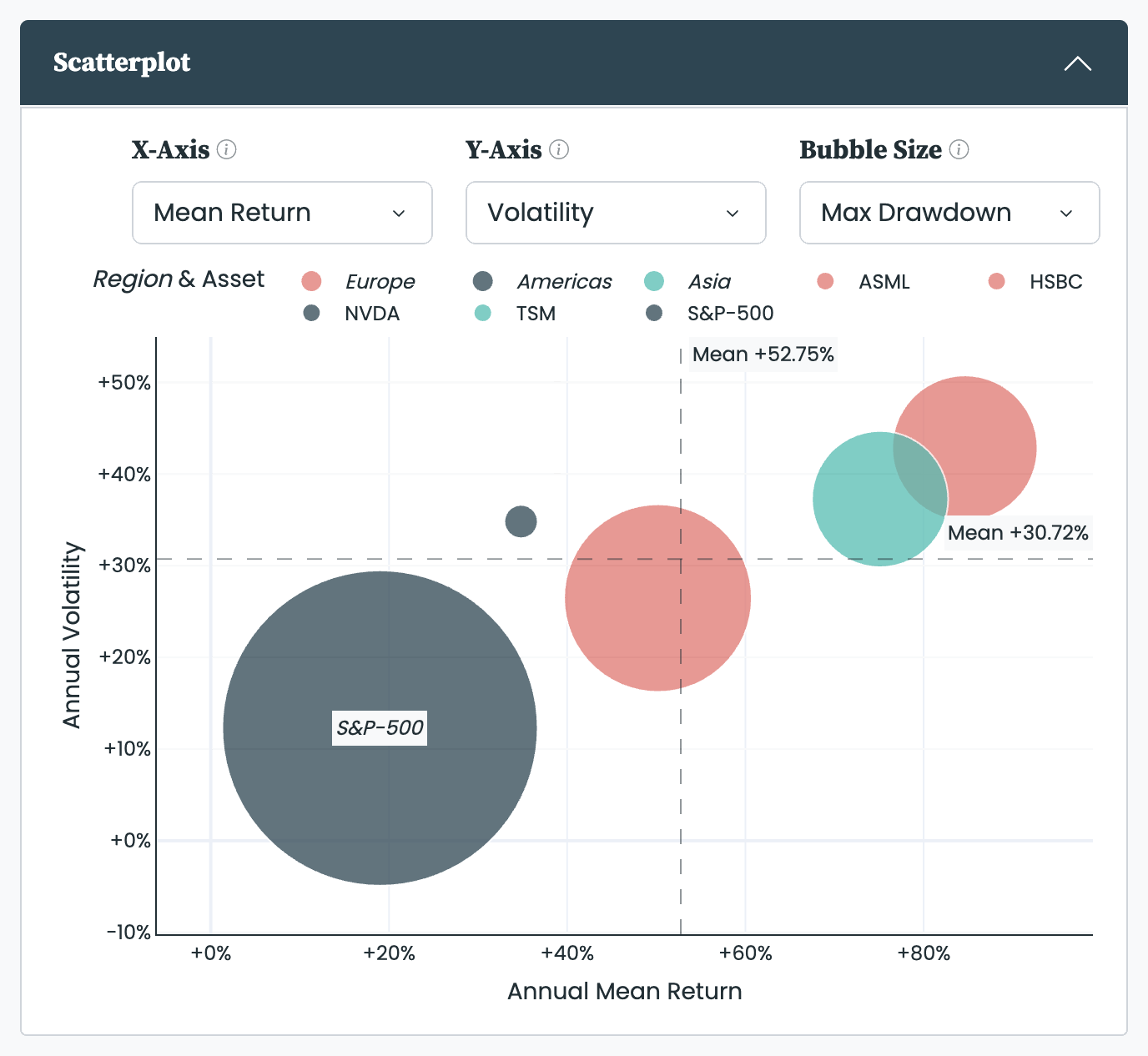
Three selectors set what the chart plots:
- X-Axis: the metric on the horizontal axis. Mean Return by default.
- Y-Axis: the metric on the vertical axis. Volatility by default.
- Bubble Size: the metric the bubble size represents. Max Drawdown by default.
Any metric the platform reports can sit on each one, so you can frame any pairing you like. Every metric is defined in the metrics we use.
The bubble size scales with the raw value of the chosen metric: a larger value draws a bigger bubble. Whether a bigger bubble is better depends on the metric—for a return metric a bigger bubble is better, while for a risk metric such as Volatility, Max Drawdown, or Value at Risk a bigger bubble means more risk, not less. Keep the chosen metric in mind when you read the sizes.
When you set a Group By—on the Comparison page or in Category Insights—the bubbles are coloured by it, with a legend for each group. Colouring this way makes it easy to tell the groups apart and to spot patterns, such as one asset class clustering in the low-risk corner. Choose Asset for individual colours.
Click an entry in the legend to show or hide an asset, or double-click to isolate one; when grouped, the legend is organised by group. The charts are interactive throughout—hover and zoom too—as described in navigating the platform.
- Quick Insights: the Category Insights view includes a scatterplot of the ranked assets.
- Comparison page: the Scatterplot tab plots the selections you are comparing.


