


Quick Insights
Contents
Quick Insights opens on a single control, Insights Type. Choose Category Insights to analyse a group of assets—every ETF, say—or Asset Insights to analyse one asset or portfolio, then click Select. The page remembers your last choice and opens straight into it next time.
Category Insights ranks and compares a whole group of assets over a single timeframe. Set the controls and the page ranks the group and draws the charts below:
- Benchmark: the asset or portfolio to compare the group against, the S&P 500 by default. Type a ticker or name to change it.
- Timeframe: the window the metrics are calculated over—MTD, YTD, 1 Y, 5 Y, 10 Y, or Max. Max uses each asset's own maximum timeframe, so the window can vary across assets; any asset younger than the chosen window falls back to its own maximum.
- Group By: the category the assets are coloured by in the charts, by asset class by default. Choose Asset for individual colours.
- Assets to Show: how many assets appear per chart—Top 5 & Bottom 5, Top 10, or Bottom 10—ranked by cumulative return over the timeframe.
- Filter By: narrows the universe before ranking. Choose None for no filter, or pick a category such as Asset Class and then one or more values, for example Equity and Fixed Income, to keep only those.
Three outputs sit below the controls:
- Returns: the cumulative return over the timeframe for the assets picked by Assets to Show, alongside the benchmark.
- Scatterplot: those same assets, each mapped on three metrics at once—return against risk, say. See understanding the scatterplot for how to read it.
- Database: a sortable table of every asset left after Filter By—not just the ones shown in the charts—ranked by cumulative return over the timeframe, with each metric calculated over that timeframe. Click an asset's underlined ticker in the Asset column to open it in Asset Insights.
Category Insights: the top ten currencies against the US Dollar Index over five years.
Asset Insights
Asset Insights gives a fast read on a single asset or portfolio. Set the controls and the charts update below:
- Asset or Portfolio: the asset or portfolio to analyse. Type a ticker or name.
- Benchmark: the asset or portfolio to compare against, the S&P 500 by default.
- Date Range: the period the charts cover, the last ten years by default; set a start or end date to change it.
Four charts follow:
- Returns: the cumulative return, with a Log Scale switch.
- Monthly Returns: a year-by-month heatmap of each calendar month's compounded return; a partial first or last month shows the return over only the days within the range.
- Drawdowns: the decline from each successive peak.
- Rolling Metrics: a metric tracked over a trailing window, defaulting to Mean Return. See understanding rolling metrics for the chart and its controls.
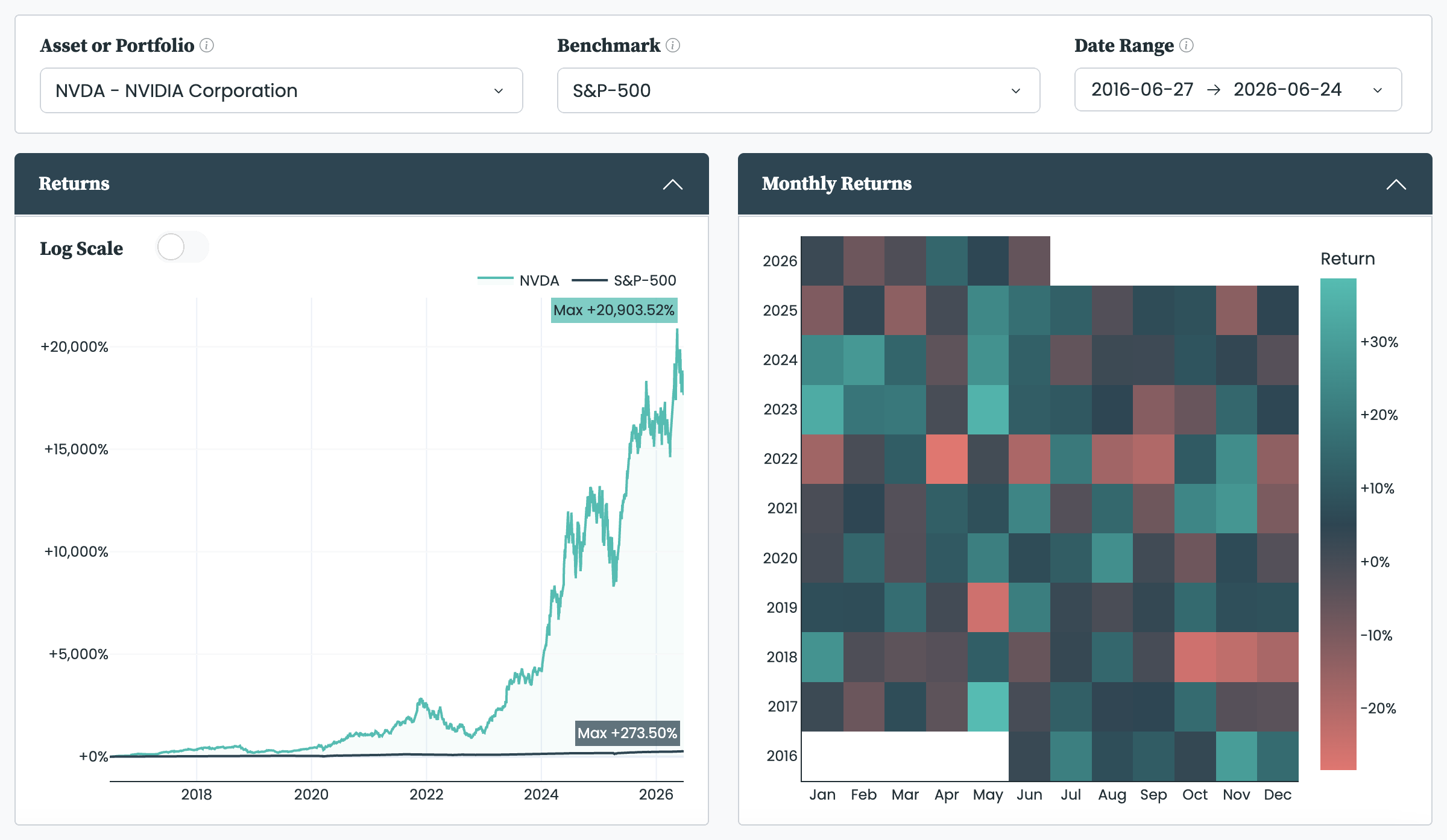
Asset Insights: a fast read on a single asset or portfolio.
Quick Insights and the full Analysis pages
Quick Insights is the fast counterpart to the full Analysis and Comparison pages. It trades their advanced settings—price basis, periodicity, risk-free rate, and confidence level—for a fixed, sensible configuration and a single click. Reach for those pages when you need that finer control or the full tab set. Every metric shown here is defined in the metrics we use.


