


Comparing assets and portfolios
Contents
Comparison works like the Analysis page, but for several assets or portfolios at once: choose them, and every chart overlays them in one shared colour scheme. If you are comparing portfolios specifically, analysing and comparing portfolios covers the portfolio entry routes and guidance.
Open the Comparison page from the Insights menu. Choose the Assets or Portfolios to compare—up to one hundred—and a Benchmark. Pick a Date Range, which covers the last year by default. Click Compare to run it, and again after any change.
Two settings are specific to comparing:
- Group By: sets how the series are coloured and grouped, by asset class by default, and carries through every chart on the page.
- Start Date: in the Advanced settings, aligns selections that begin on different dates—First Asset starts the window from the oldest selection, Last Asset from the youngest, and Median Asset from the middle one.
The rest of the advanced settings—price basis, periodicity, risk-free rate, and confidence level—work exactly as they do on the Analysis page.
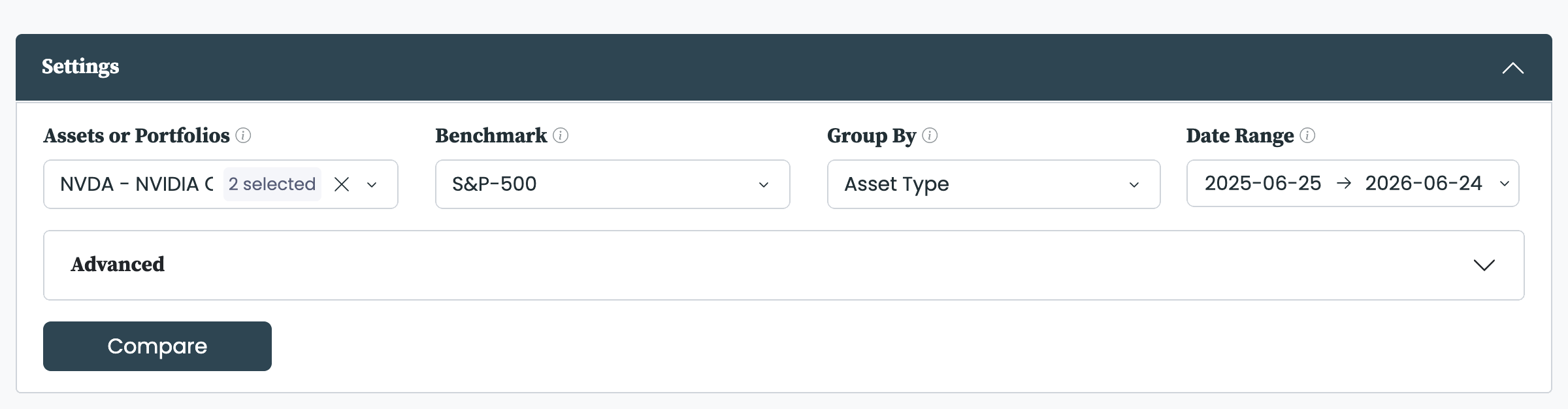
Setting up a comparison: pick the selections, a benchmark, and how to group them.
Returns and drawdowns
Returns overlays the cumulative return of each selection over the period, with a Log Scale switch. Drawdowns overlays each one's decline from its running peak, so you can see which held up best in the worst stretches.
With several selections overlaid, click an entry in the legend to hide or show a series, or double-click to isolate one; see navigating the platform.
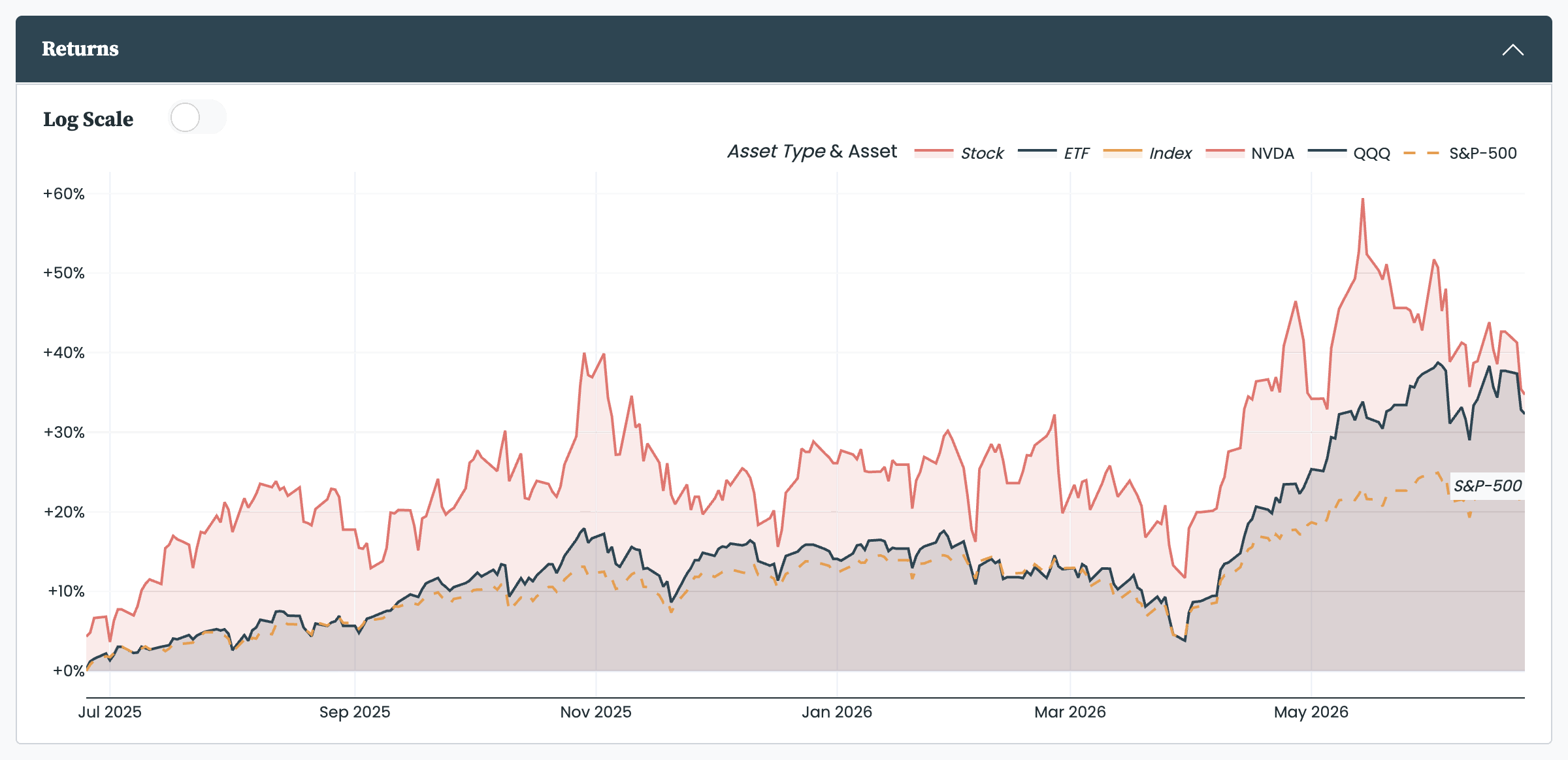
Cumulative returns, overlaid and colour-coded by group.
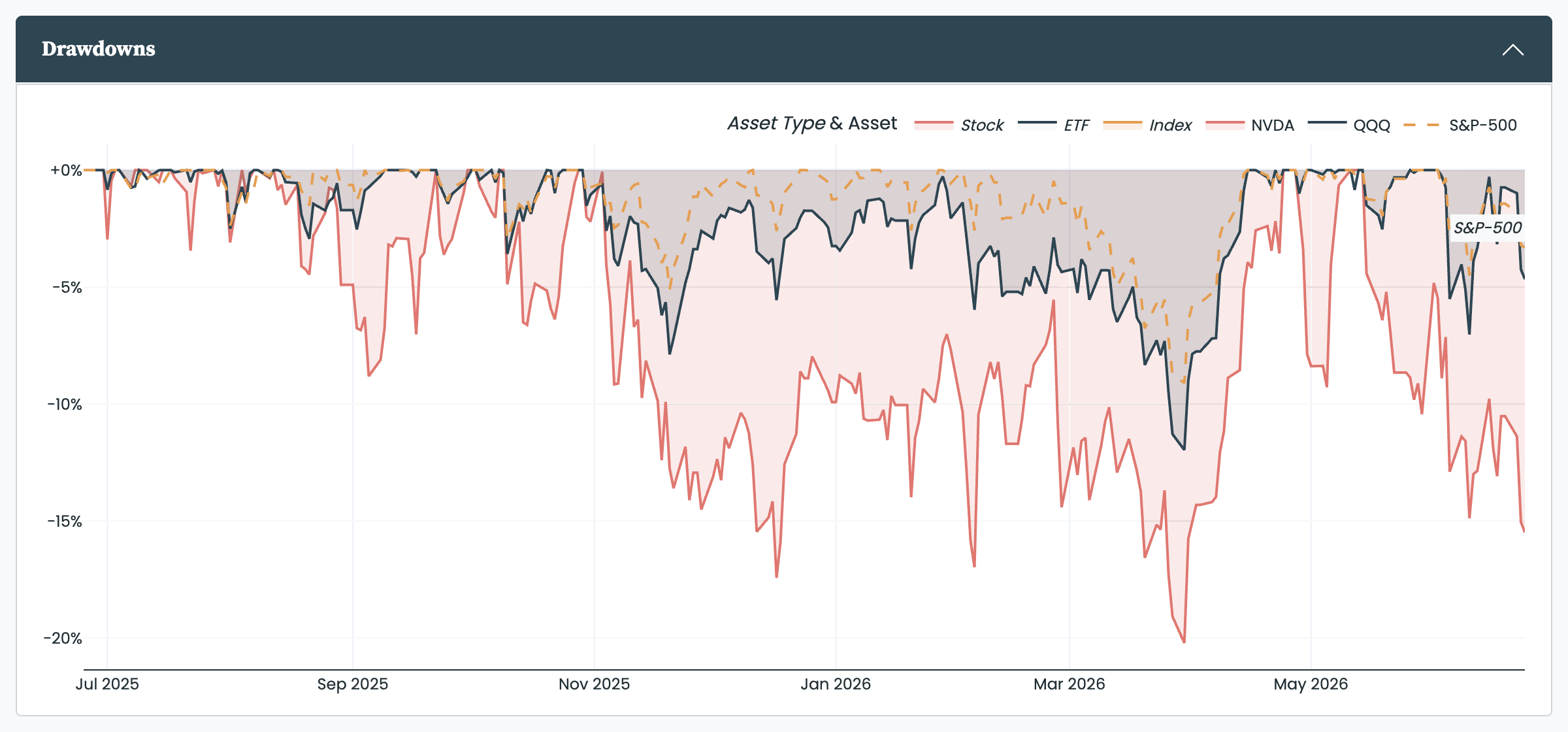
Drawdowns side by side: which held up best in the worst stretches.
Metrics
The Metrics table lists every selection side by side across the full set of metrics, so you can sort and rank them. Each metric is defined in the metrics we use.
Two views appear only when comparing:
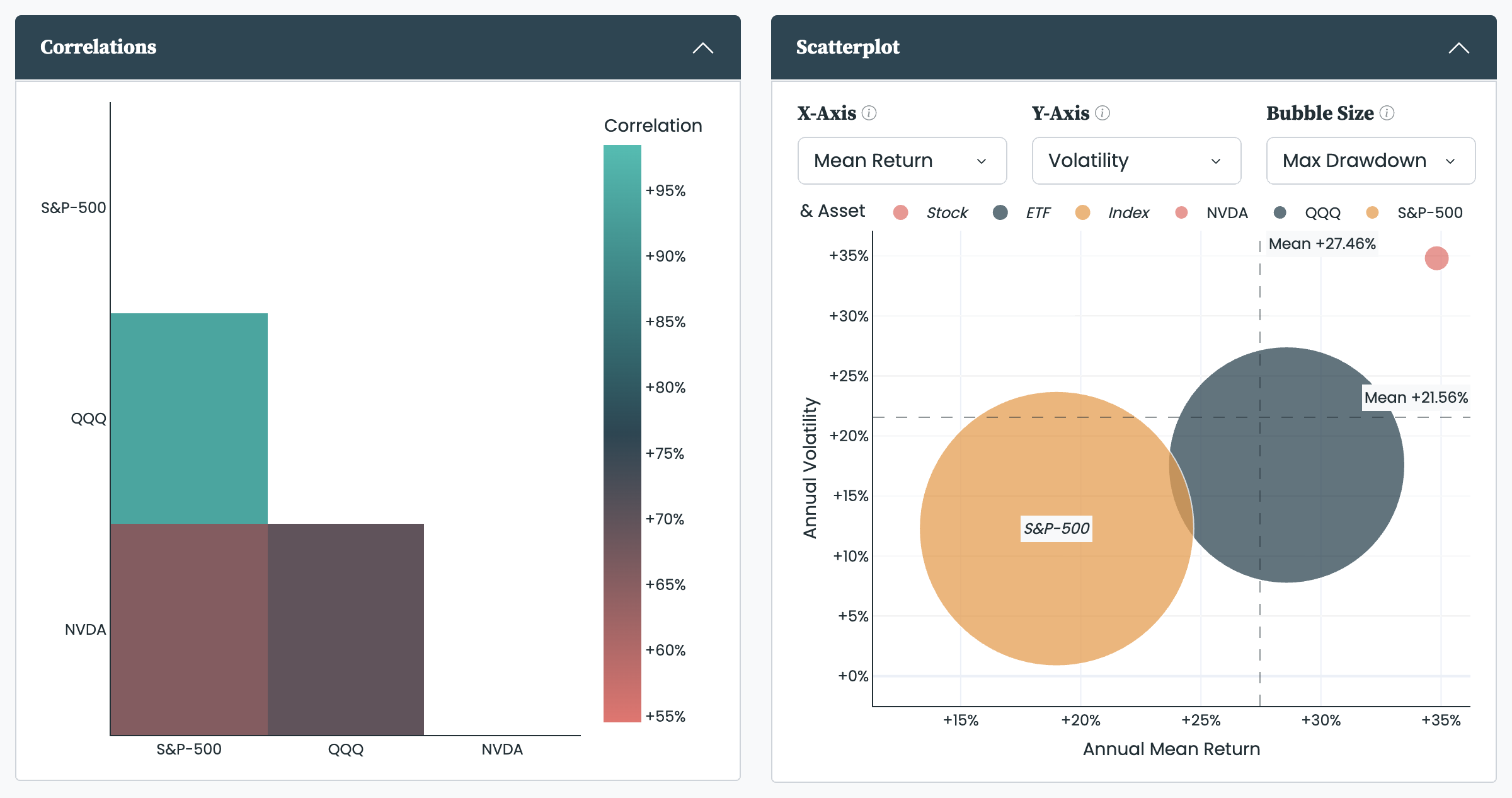
- Correlations: a matrix of how closely the selections' returns move together; the first column ranks them by their correlation to the benchmark.
- Scatterplot: plots each selection on three metrics at once, so you can frame return against risk in a single picture. See understanding the scatterplot for how to read it.
Comparison gives a single rolling chart that overlays every selection on one metric through time, where the Analysis page has two. See understanding rolling metrics for the chart and its controls.
When the comparison includes one or more portfolios—or the 'my_investments' asset pfolio builds from your investment trade log—the Allocations chart shows their average allocation over the period, grouped by the page's Group By. As on the Analysis page, on a paid plan this requires a completed investor profile. For the grouping logic in detail, see understanding the allocation charts.


