


Managing assets
Contents
You reach an asset from a table. The Asset Database lists every asset you can use; the Assets Overview instead shows one table per asset list, and only for the lists you select for display in its Asset Lists Selection for Tables dropdown. Select an asset and the Actions menu offers four options—Analyse, Compare, Add to List, and View Details. Analyse and Compare open the asset in the Insights Analysis and Comparison pages for a deeper look, covered in Analysing ETFs, stocks, and more. Add to List puts the asset into one of your asset lists. View Details—or clicking the asset's underlined ticker in any of those tables—opens the asset itself in the Asset Builder, where the rest of this article applies.
The four Actions:
| Action | What it does |
|---|---|
| Analyse | Opens the asset in the Insights Analysis page. |
| Compare | Opens the asset in the Insights Comparison page for side-by-side study. |
| Add to List | Puts the asset into one of your asset lists. |
| View Details | Opens the asset in the Asset Builder. |
Opening an asset from a table to its details.
The Asset Summary
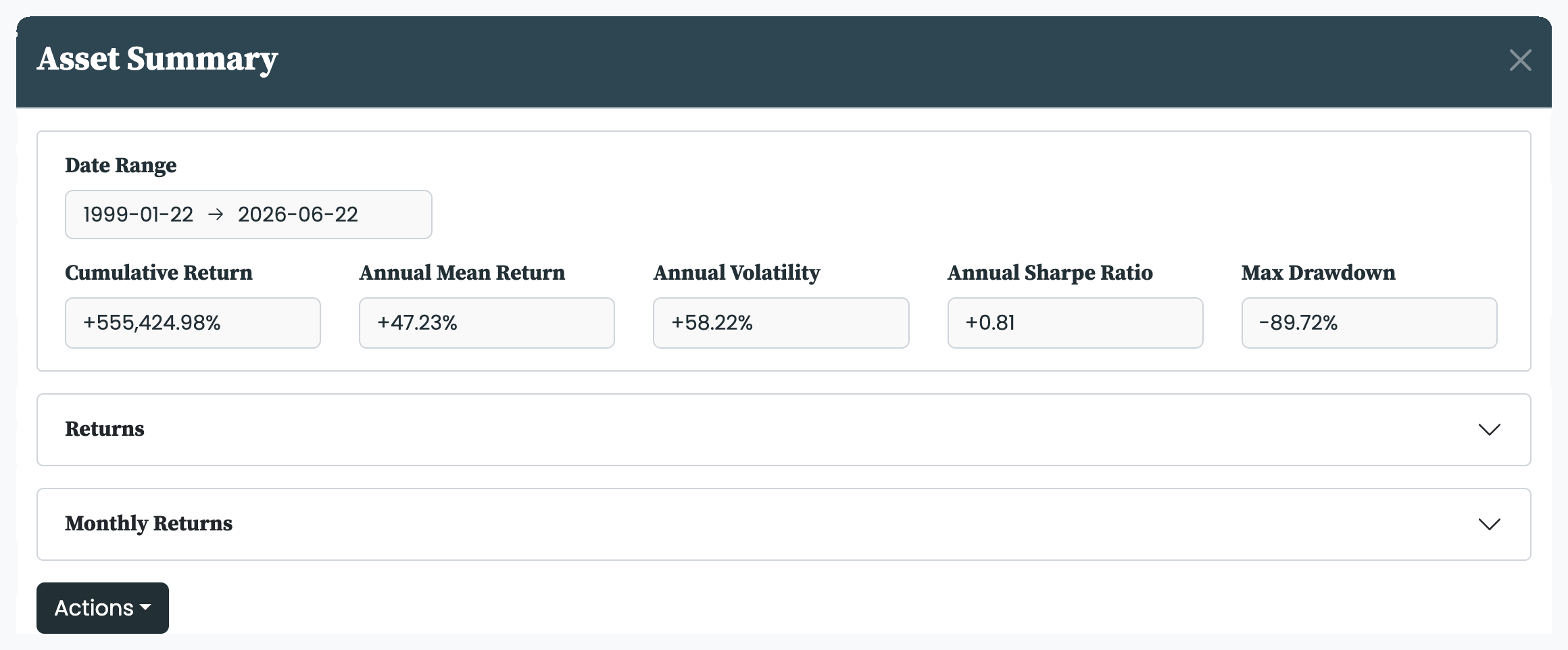
The opened asset's Actions menu includes View Summary, which opens the Asset Summary. It is a quick read of the asset's track record without leaving the page: a Date Range to set the window, the headline metrics—Cumulative Return, Annual Mean Return, Annual Volatility, Annual Sharpe Ratio, and Max Drawdown—a Returns chart that switches between Returns and Drawdowns, and a Monthly Returns view. From the summary you can also jump straight to Analyse Asset or Compare Asset in Insights.
The Asset Attributes tab shows the asset's attributes—its class, region, and the rest—as recorded in the Asset Database. You can edit the attributes only of assets you own, and editing needs the Asset Builder add-on on top of that ownership. What each attribute means, how the fields cascade, and where attributes are used across the product are covered in Asset attributes.
An opened asset's Actions menu offers Update and Delete to owners. Update rebuilds the asset with the latest data and any configuration changes you have made; Delete removes it after a confirmation step. pfolio's own assets open read-only through View Details, so they carry neither option—to base your own asset on one, build a copy instead.
The Asset Data tab holds two tables: Data Quality, which reports the first and last day of history, missing days, and the largest daily moves, and Price Data, the asset's price series itself. Download exports the price series as a file; it is available with the Export add-on. For how the data is cleaned and what each Data Quality figure means, see Processing asset data.


