


Quantitative insights tools
Whatever you want to know about how an asset or portfolio has behaved—how it has performed, how risky it has been, whether that has held steady, how it compares to others—Insights has a tool for it. Open Insights from the main menu; whichever tool you use, you choose what to look at, a benchmark to measure it against, and a date range, and pfolio does the rest.
- Quick Insights: the fast, no-setup way to explore—rank a whole category of assets, or pull up a single asset or portfolio, in a click. See Quick Insights.
- Analysis: one asset or portfolio in full depth—returns, risk, rolling metrics, and, for portfolios, allocations. See analysing an asset or portfolio.
- Comparison: several assets or portfolios side by side, overlaid on every chart. See comparing assets and portfolios.
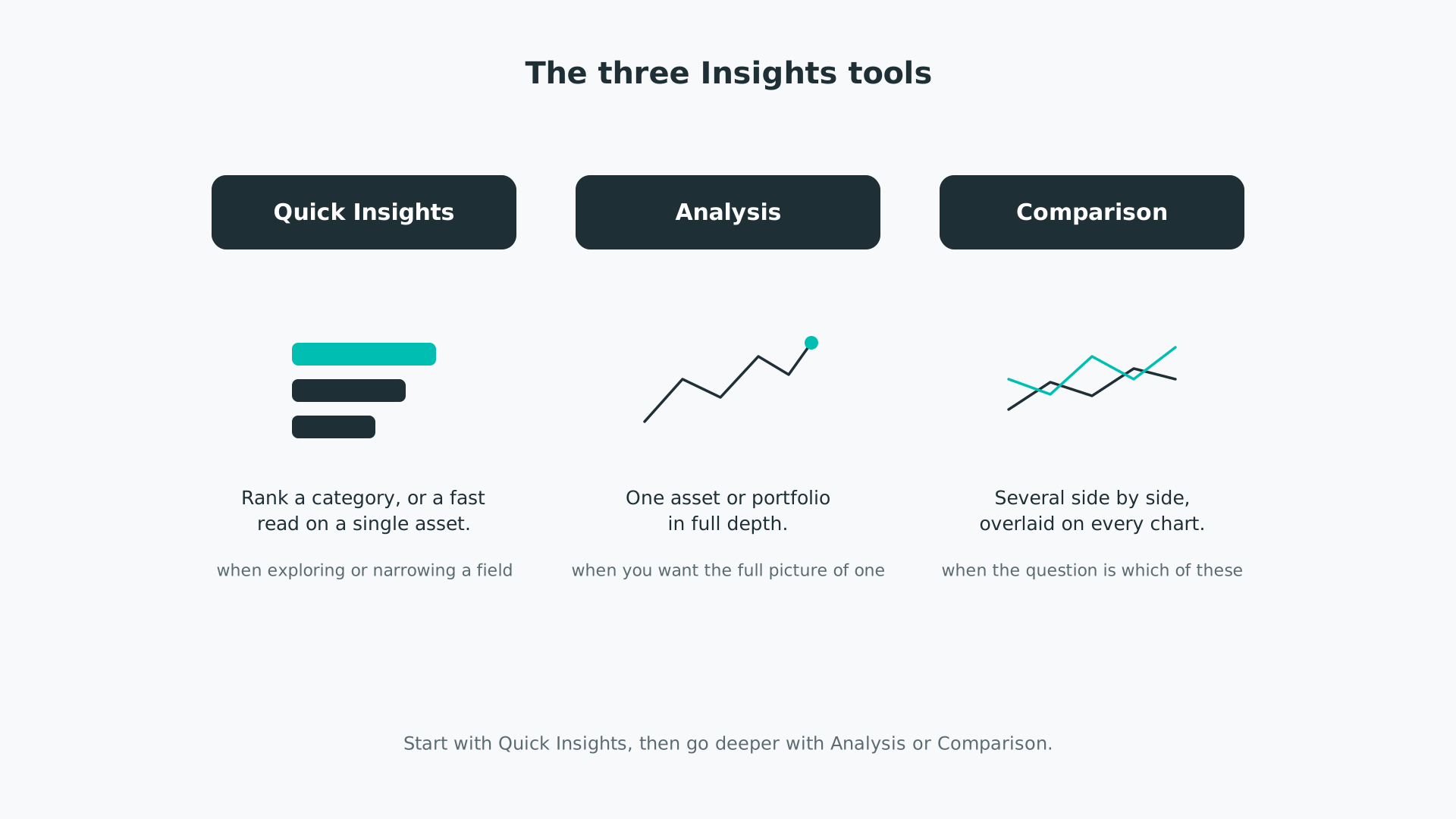
Start with Quick Insights to get your bearings or to narrow a field—the top performers in a category, or a quick read on one holding. Move to Analysis when you want the complete picture of a single asset or portfolio. Reach for Comparison when the question is which of several to pick, and you want them measured on the same basis at the same time.
Every tool draws on the same engine, so the numbers mean the same thing wherever you see them.
- Advanced settings: price basis, periodicity, risk-free rate, and confidence level shape how the metrics are calculated, and come set to sensible defaults. See analysis and comparison advanced settings.
- Time series: the charts read off daily series; time series data and metric types explains how that data is built and the kinds of metric it produces.
- Metric definitions: every metric is defined in the metrics we use.
Two charts turn up across the tools and have their own guides: the scatterplot and rolling metrics.
Every Insights chart is interactive—hover for values, click the legend to show or hide series, and zoom in—as described in navigating the platform.


