


Tracking your transactions
Tracking your transactions is the fuller way to follow your investments. You enter every trade, transfer and fee over time, and pfolio reconstructs your whole history from them—your net asset value, cash flow and performance—which it charts in the Investments Overview. It also creates the my_investments asset and the My Investment Positions list, which you can reuse across the platform. See Investments calculations explained for how the figures are worked out.
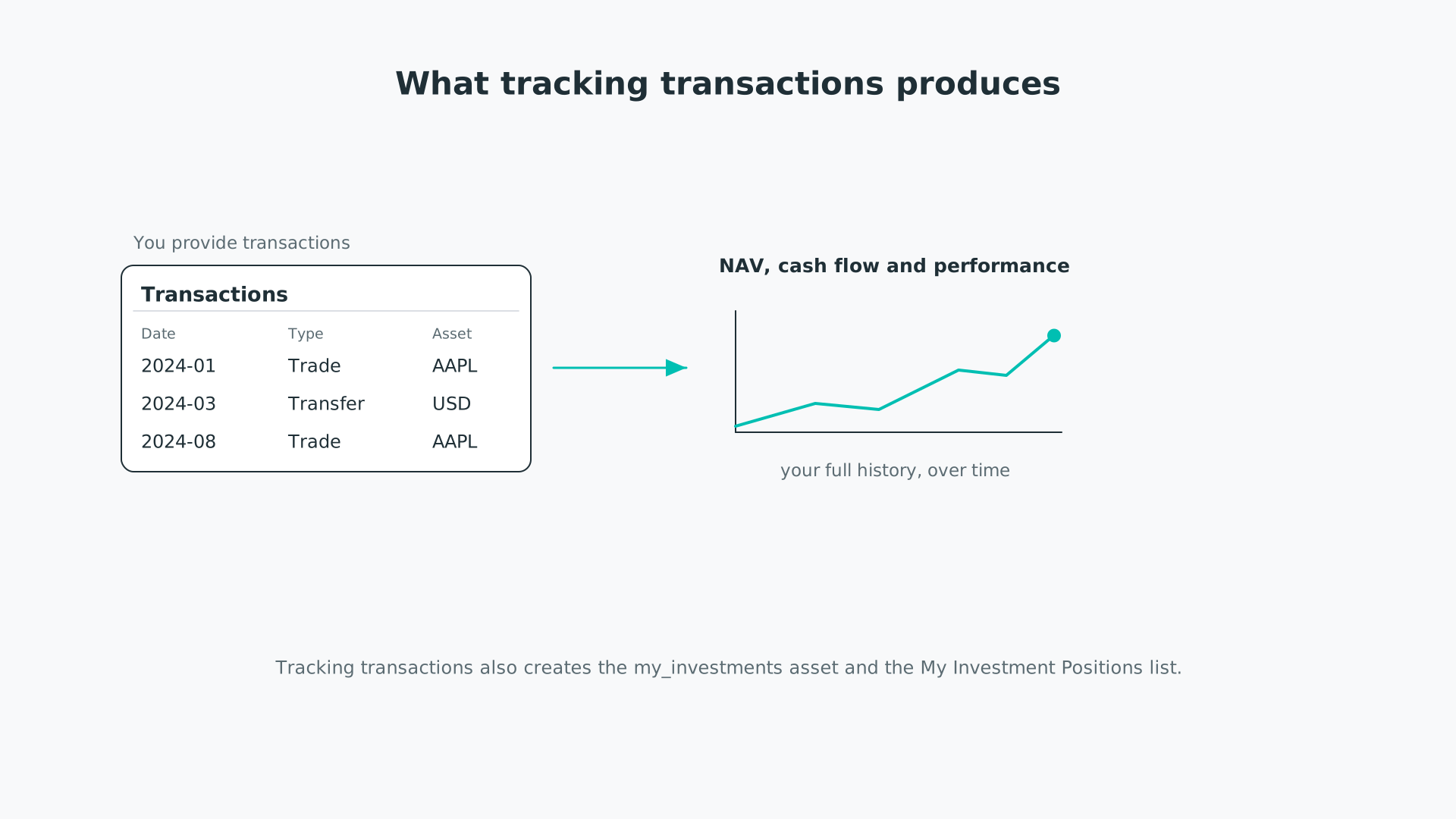
From your transactions, pfolio reconstructs your net asset value, cash flow and performance over time.
It is one of two ways to track in the Trade Log; see Tracking your positions for the quick snapshot method, and Tracking your investments for how they fit together.
Head to the Trade Log page and open the Transactions table. You can type your transactions straight into the table or upload them. To upload, use this template. The following functions are available:
- Input: type directly into the table cells, or pick from the dropdowns in the Type and Asset columns.
- Upload: select Upload from the Actions menu, then drag and drop or choose a CSV or Excel file. Uploaded transactions are added to the transactions already in the table.
- Edit: edit any cell directly in the table.
- Update Transactions: once the table looks right, click Update Transactions to save your transactions.
- Remove an entry: clear the values in its row and click Update Transactions—blank rows are dropped when you save.
- Delete all: select Delete from the Actions menu, then click Confirm Deletion.
- Download: select Download from the Actions menu to download your transactions.
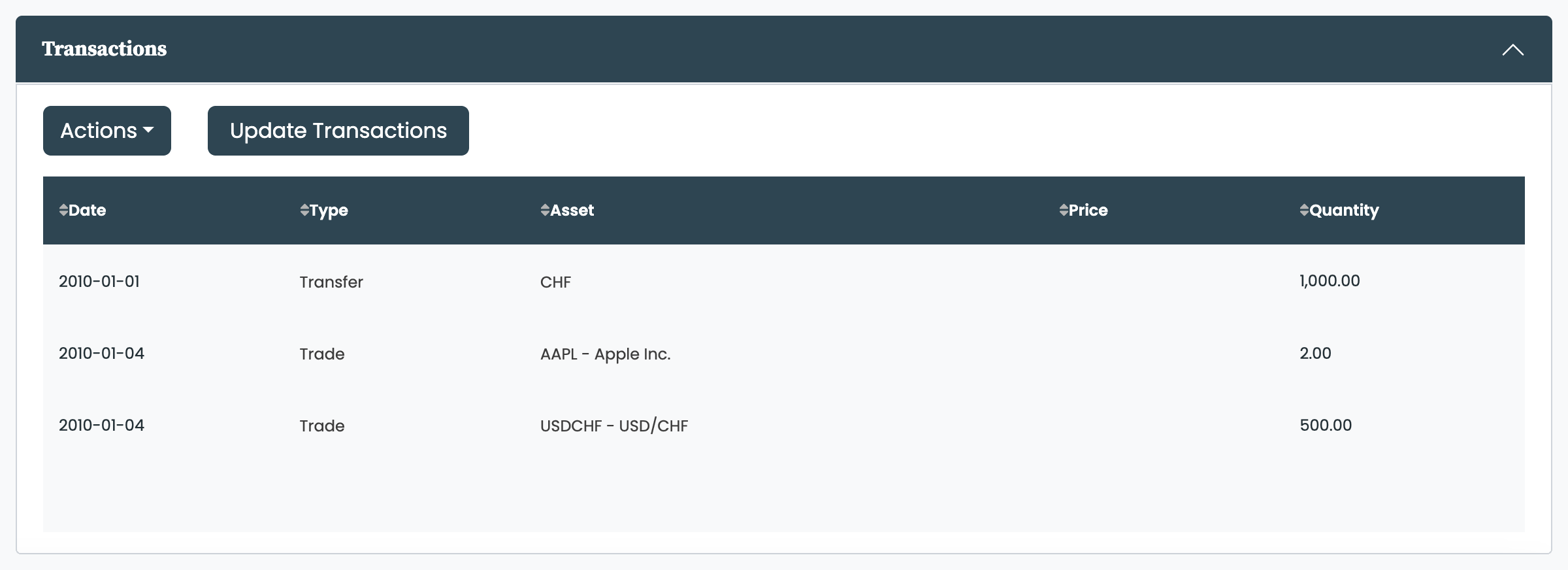
Each transaction has a Type, selected from the Type column. The Asset column then offers the relevant choices—assets for a Trade, currencies for a Transfer, Fee or NAV:
- Trade: the buying or selling of an asset. Leave the price empty to use the asset's closing price on the entered date. Enter a positive quantity to buy and a negative quantity to sell.
- Transfer: a deposit or withdrawal of cash into or out of your brokerage account. Leave the price empty.
- Fee: transaction costs for buying and selling assets. Enter a negative amount for a fee paid. You can also record interest earned here, as a positive amount.
- NAV: a manual adjustment to your net asset value. pfolio calculates your NAV from the transactions you provide; use a NAV entry to align the calculated figure with your actual NAV.
A trade settles in the asset's currency, and pfolio does not convert currencies for you—so buying an asset priced in another currency leaves a negative balance in that currency until you fund it with a Transfer or an exchange-rate trade. See Investments calculations explained for how this is valued.
For a Trade, the price is what you actually traded at on that date; pfolio then adjusts the price and quantity for any later stock splits, so your holding always reflects post-split units. For futures, the quantity is in contracts and scaled by the contract's multiplier (50 for ES, for example). You can enter a fractional quantity, which lets you represent a contract pfolio does not list separately—a Micro E-mini S&P 500, a tenth the size of the E-mini, can be tracked as 0.1 ES.
Tracking your transactions.
Tracking your transactions creates the My Investment Positions list of your current holdings, and the my_investments asset representing your whole account. Both open in the Insights tools.
You only need one tracking method. Once you log any transactions, your positions are derived from them: the positions table becomes read-only—it can no longer be edited, and the Update Positions button and the Upload and Delete actions are removed. Any positions you had entered by hand are replaced by the ones calculated from your transactions, so from then on you change your holdings by editing your transactions, not your positions.
All figures are shown in the base currency you set at the top of the Trade Log. See Tracking your investments for how to set it and what it affects.


